A successful school iPad program comes down to five decisions made before term starts: the ownership model (school-owned, leased, parent-funded or BYOD), the refresh cycle, how the program is funded and presented to the board, how devices are enrolled and managed, and what warranty, AppleCare and insurance cover applies. Settle those, then plan the rollout.
This guide is for the business manager or principal planning a new 1:1 program, or renewing one that is reaching the end of its first cycle. It sits inside our IT for schools hub and follows the order I would use if we were working through it together at your table.
Most problems that reach a classroom were decided months earlier, usually in a purchasing conversation that treated the device as the whole job. Devices are the easy part. The lifecycle is the work. Below you will find the five decisions, a rollout plan for the weeks before devices land, and the questions to ask any supplier, us included.
Key Takeaways
- Choose the ownership model first. It decides who controls management, repairs and the exit.
- Set the refresh cycle by classroom need, and protect residual value by managing devices cleanly from the first day.
- Present funding to the board as a lifecycle with options and named risks, not a single purchase figure.
- Enrol every device through Apple School Manager into an MDM platform that the school, not the supplier, controls.
- Map each type of incident (fault, accidental damage, theft, loss) to the layer of cover that pays for it.
- Plan the rollout backwards from the first lesson that needs devices, and apply the teacher test.
Free, 45 minutes
Start with a school IT health check.
We look at your environment, rank the risks in plain English and tell you what deserves attention first. Built for schools, with nothing to prepare.
At a glance: the five decisions
| Decision | Question to settle | What goes wrong if skipped | Who should be in the room |
|---|---|---|---|
| Ownership model | Who owns, manages and repairs each device? | Mixed fleet, unclear responsibility, parents unsure what they paid for | Principal, business manager, IT lead |
| Refresh cycle | When does each device leave service, and where does it go? | Ageing devices slow lessons, or early replacement that never recovers value | Business manager, IT lead, curriculum lead |
| Funding and board paper | How is it paid for, and how is it explained? | Hidden costs surface mid-year and the board sees one number without context | Business manager, principal, finance committee |
| Device management | How do devices enrol and stay current? | Hand-configured devices, inconsistent settings, locked devices at retirement | IT lead, supplier, privacy officer |
| Cover | Which layer pays for each type of incident? | Disputes over repairs, uninsured losses, slow replacements | Business manager, insurance broker, supplier |
Decision 1: Which ownership model suits your school?
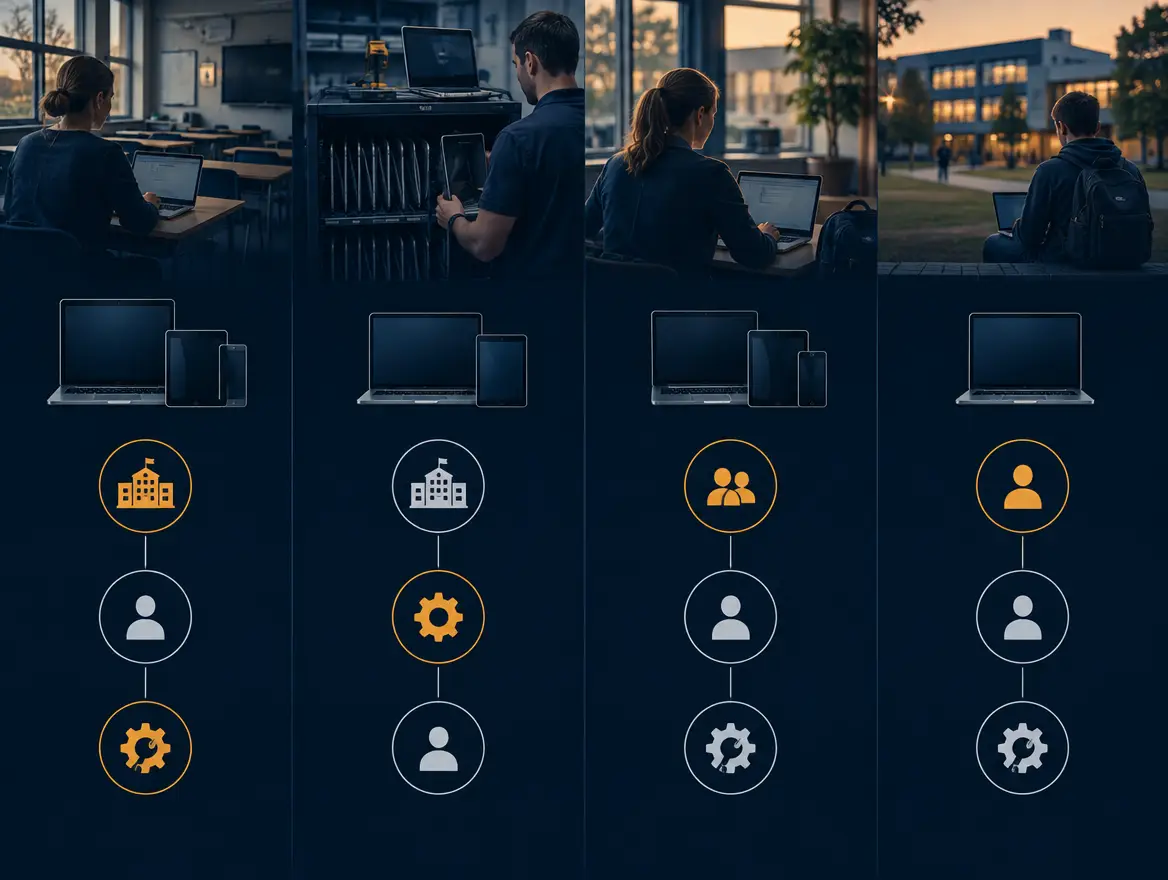
School-owned, leased, parent-funded and BYOD each shift cost, control and risk differently. School-owned and leased devices give you the most control over management and support. Parent-funded works when the school still specifies and enrols the device. BYOD gives the least control and suits schools that accept limited management and a wider spread of devices.
| Model | Who owns the device | Control and management | Main watch-point |
|---|---|---|---|
| School-owned | The school | Highest. Settings, apps and updates are controlled centrally | Capital outlay and repair responsibility sit with the school |
| Leased | The lessor, with the school as user | High for the lease term | Return conditions and end-of-lease obligations |
| Parent-funded | The family, or the school while instalments are paid | High if bought through a school-specified channel | Fairness, hardship arrangements and what happens when a student leaves |
| BYOD | The family | Lowest. Personal devices can only be managed in a limited way | Uneven classroom experience and a heavier support load |
In my experience the BYOD versus school-owned debate is really a question about what your teachers need to rely on. A teacher planning a lesson around a particular app wants every student to open the same thing, set up the same way. A mixed fleet makes that hard.
Apple does support personal devices through User Enrolment, which keeps school data separate from personal data. It is designed to limit what the school can see and control. Apple's Platform Deployment guide sets out what that approach can and cannot do, and it is worth reading before you commit to BYOD for anything beyond a small group.
Leasing is better treated as a way of paying than as an ownership model. Read the return conditions closely. Cosmetic damage, missing accessories and devices that are still locked to your accounts can all create obligations at the end of the term.
If families fund the devices, keep the purchase inside a school-specified channel. That way the devices can be assigned to your Apple School Manager account on arrival. Devices bought elsewhere can often be added by hand, but you are then rebuilding by hand what a good order would have done for you.
Finally, decide where iPad and Mac each belong. Many schools use iPad in the early and middle years and add Mac for senior subjects such as media, design and robotics. Both enrol the same way, so a mixed fleet is manageable if it is planned rather than accidental.
Decision 2: How long should a device stay in service?
Set the refresh cycle by what the device must do for that year level, not by habit. Check battery health, software support and classroom workload. Then decide the exit at the start, because residual value depends on how the device was managed, wiped and released over its life, not only on its age.
Three things usually decide when a device is done:
- Software support. Apple publishes which iPadOS and macOS versions each model can run. A device that cannot take current updates becomes a security and app-compatibility problem, whatever it looks like.
- Battery and wear. A device that cannot last the school day is a lesson lost, however capable the processor.
- Workload. A senior student editing video asks more of a Mac than a Year 3 student reading in an app does of an iPad. One cycle for every device is simpler to budget but rarely right.
Some schools stagger the refresh, replacing a year level each year. This smooths the budget and avoids one enormous rollout. Others refresh in one go for consistency. Neither is wrong. What matters is that the board hears the trade-off.
What protects residual value
Residual value is mostly decided by habits you set in year one. Devices that are supervised and released cleanly from your MDM platform and Apple School Manager can be reset and reused. Devices still tied to a school account, or with Activation Lock on, are close to worthless to a refurbisher.
Keep cases on, avoid heavy permanent labelling directly on the device body, and record serial numbers against students as they are issued. Condition and clean data removal are what a buyer pays for.
We manage the retirement end of this through PonyUp for Good. Data is destroyed, devices are refurbished and resold, and half the profits are converted into meals. By SCCS's own count, that partnership has funded more than 150,000 meals and diverted more than 40 tonnes of technology from landfill. Whichever partner you use, ask what is returned to the school and what certificate of data destruction you receive. Our products and lifecycle page explains how we think about the full cycle, from selection through to retirement.
Decision 3: How do you fund the program and present it to the board?
Fund the program as a lifecycle, not a purchase. Show the board the cost of owning the fleet across its whole life: devices, cases, management, charging, repairs, cover and retirement. Set that against how the school will pay, whether through fees, a levy, a lease or capital. Boards decide best when they see options and named risks.
The common mistake is a board paper built around the box price. It is easy to read and easy to approve, and it leaves out the costs that arrive in the second and third year. Those are the costs that make a business manager's year difficult.
A one-page board summary usually covers:
- The purpose. What teaching and learning outcome the program supports, in the principal's words.
- Two or three options. For example school-owned across all years versus school-owned in the early years and parent-funded Mac in senior years.
- The full lifecycle cost of each option, taken from a written supplier quote, with the assumptions stated.
- The funding source. Fees, a technology levy, a lease or reserves, and who carries the risk if enrolments change.
- Risks, ranked in plain language. If something is fine, say it is fine. You are not trying to alarm anyone.
- The decision you need. One clear recommendation and what happens next.
There are often gaps that sit outside the device quote: charging infrastructure, storage, Wi-Fi capacity in older buildings, and staff time. If you are unsure your network can carry a full 1:1 load, the school IT health check is a calm way to find out before you commit.
For families, be open about what is included. State what the device fee covers, what happens on repair, what a student takes with them if they leave, and how hardship is handled. Confusion here causes more complaints than the price itself. If leasing is involved, speak to your auditor about how it will be accounted for.
Decision 4: How will devices be enrolled and managed?
Enrol devices through Apple School Manager and manage them with a mobile device management (MDM) platform. Apple School Manager holds your devices, apps and Managed Apple Accounts. The MDM applies settings, apps and restrictions automatically when a device first switches on, so nobody configures iPads or Macs one by one.
Here is how the pieces fit, based on Apple's Apple School Manager and Platform Deployment documentation:
- Apple School Manager is where the school sets up its organisation, verifies its domain, creates Managed Apple Accounts and assigns devices to an MDM server.
- Automated device enrolment means a new or reset iPad or Mac contacts Apple when it is first turned on, finds your MDM and enrols itself. The device is supervised, which gives the school a deeper level of control than a personal device allows.
- The MDM platform pushes Wi-Fi settings, apps, restrictions and updates. It can also lock or locate a lost device and release it cleanly at retirement.
- Apps and Books purchasing, through Apple School Manager, lets the school buy and assign apps centrally rather than relying on individual accounts.
- Shared iPad lets several students use one iPad with their own Managed Apple Account, which suits carts in the early years.
Two points matter more than the technology.
First, the school must own its Apple School Manager account. It should be registered in the school's name, with at least two named administrators, and a documented handover. If your supplier set it up and holds the only login, you have a dependency, not an asset.
Second, device management is a security control as well as a convenience. The ACSC's Essential Eight, published on cyber.gov.au, includes patching operating systems and applications. A managed fleet that updates on a schedule is how that happens in a school. Check the current version of the guidance when you plan.
Student data also brings privacy obligations. Independent schools are generally covered by the Privacy Act, and the OAIC's Notifiable Data Breaches scheme applies to eligible breaches. A managed fleet with clear account controls makes it far easier to answer the question of what was on a lost device. Your privacy officer should see the MDM settings before launch.
Decision 5: What warranty, AppleCare and insurance cover do you need?
Think in three layers. The manufacturer's warranty and Australian Consumer Law guarantees cover faults. AppleCare extends hardware support and, depending on the plan, may include accidental damage for a fee. School insurance covers theft, loss and anything the other two exclude. Know which layer pays for each incident before the first device is issued.
Start by mapping the incidents you actually expect:
- A device that fails on its own. This is a warranty or consumer guarantee matter. The ACCC explains consumer guarantees on its website, and they can apply to business purchases in some circumstances. Confirm how that applies to your purchase.
- A cracked screen or spill. This is accidental damage. Check whether your AppleCare plan covers it, what the fee is per claim, and who lodges the claim.
- Theft or loss. This is generally an insurance matter, not a warranty one. Confirm with your broker whether devices are covered off campus, in bags and at home.
- Deliberate damage. Decide your policy now. It is a school and parent matter, not an IT one.
- Battery wear. Check how the plan treats batteries, as this is a common late-cycle issue.
Apple's education coverage terms change from time to time, so confirm the current options with whoever supplies your devices and read the plan documents, not the summary. Decide who handles repairs, whether the school keeps a pool of loan devices, and how long a student can reasonably be without one. A repair process that takes a student out of lessons for a long stretch fails the teacher test.
If parents fund the devices, write down who pays the excess and when. Our Apple page outlines how we support Apple fleets in schools.
Term-time rollout plan: the weeks before devices land
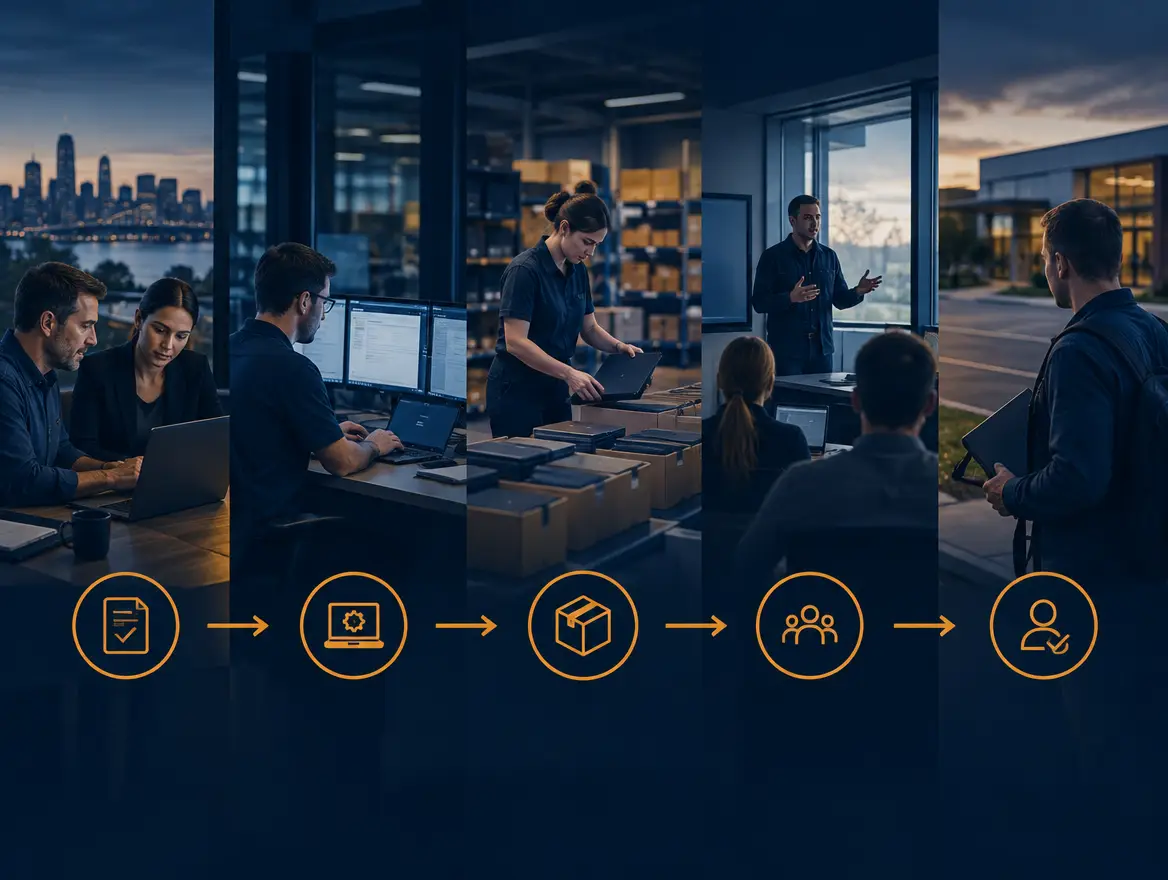
Work backwards from the first lesson that needs devices. Confirm the order, configure and test a pilot set, label and stage stock, prepare charging and storage, train staff, then hand out in a planned sequence. Each step protects lesson time, which is the only thing that matters. If technology steals a minute of the lesson, it failed.
I deliberately avoid fixed week counts here, because every school calendar differs. Instead, set your own dates by counting back from the first teaching day and allow slack for freight and stock.
Configuration and imaging
For iPad and for most modern Mac fleets, traditional imaging has largely given way to automated enrolment, where the device configures itself on first start-up. Build your configuration profiles in the MDM, then test on a small pilot group of devices before the full order arrives. Test Wi-Fi, printing, the apps teachers rely on, and a Managed Apple Account sign-in. Fix what the pilot finds while it is still cheap to fix.
If your school has older Macs with specialist software, test that software on the new macOS version before anything is ordered in volume.
Labelling and asset records
Decide the labelling scheme before boxes are opened. Record each serial number against an asset tag, and later against a student or class set. Keep labels off the screen and avoid anything that will damage the finish, as that affects residual value. A single spreadsheet or your MDM's inventory is fine, as long as one person owns it.
Charging and storage
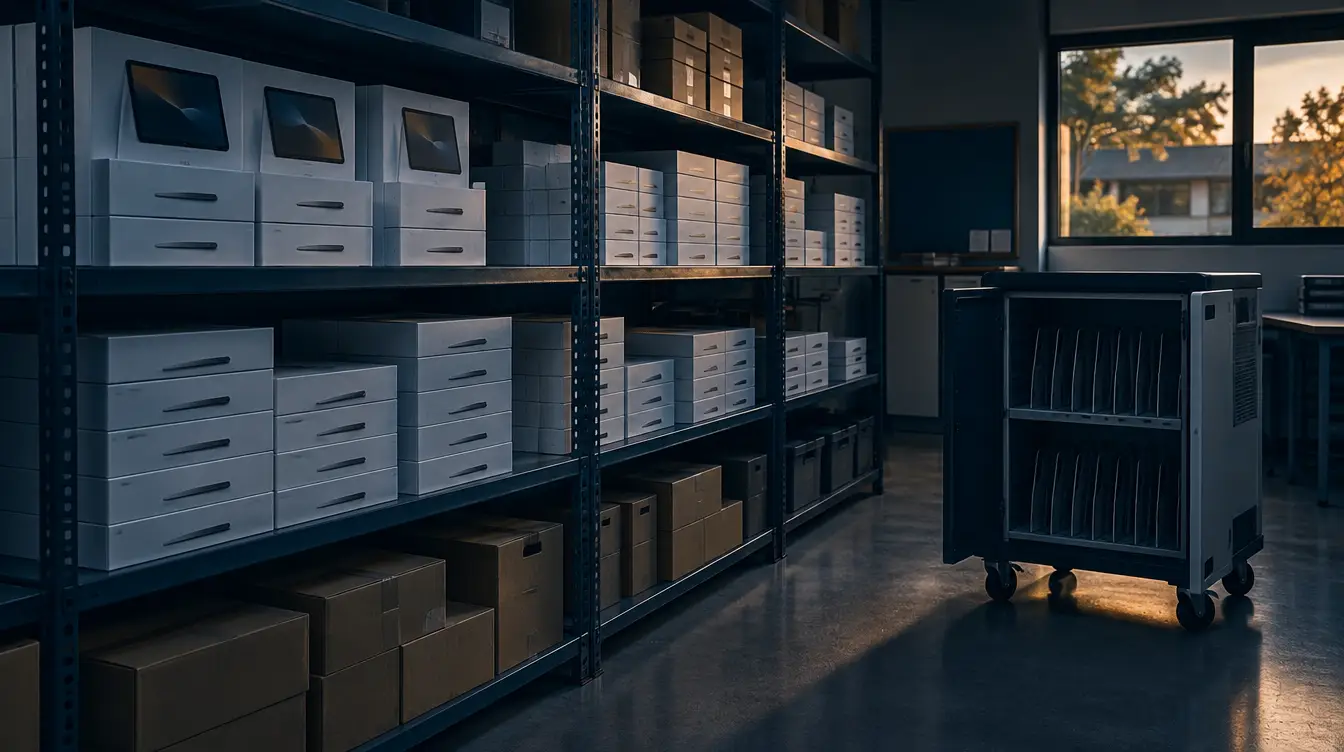
This is the most underestimated part of any rollout. Work out where devices live overnight, who unlocks the storeroom, and whether the power load in older rooms can carry a full charging trolley. Plan for secure storage where students do not take devices home. Label every trolley slot. Boxed devices arriving ahead of time need a lockable, dry room and a clear receipt process.
Staff readiness
Teachers should handle the device before students do. Give them time with the pilot devices, show the two or three things they will do every lesson, and name one person to call. Keep training short and practical. A teacher who has used the device once will cope; one who meets it for the first time in front of a class will not.
Handover day and the first week
Hand devices out in a planned sequence, class by class, with IT staff on hand. Have a plan for forgotten passwords, broken screens and devices that will not enrol. Keep a short list of spare devices ready. Check in with teachers at the end of the first week and fix what they report quickly. Quiet is what you are aiming for.
Questions to ask any supplier, including SCCS
Ask every supplier the same questions, in writing, and compare the answers side by side. A good supplier will welcome this. The point is to learn who owns the outcome after delivery, not only who delivers the box.
- How will devices from this order be assigned to our Apple School Manager account, and who does it?
- Will our Apple School Manager and MDM accounts be in our name, with our administrators? What do we receive at handover?
- How are you positioned with Apple, and what does that mean for enrolment, warranty claims and support? Please answer plainly.
- Who configures and tests devices before delivery, and can we see a pilot unit first?
- What does the quote include beyond the device: cases, charging, storage, labelling, configuration and delivery?
- Which AppleCare options can you supply, and what are the current terms for education?
- When a device fails or is damaged, who do staff call, and what is the process to get a student back to a working device?
- Who will support us after the project, and will it be the same people who built it?
- How do you retire devices at the end of life, and what proof of data destruction do we receive?
- What will you tell us is fine, and what will you tell us to fix first?
For transparency on number three: we supply Apple hardware through Australia's major IT distributors. Ask us what that means for your order, and ask every other supplier the same thing.
Why we plan the end of the program first
Most schools begin a device program by choosing the device. I think that is the wrong end to start from. I would begin with the exit.
If you know how devices will be wiped, released, refurbished or resold, you can see which ownership model makes that easy and which makes it painful. Parent-funded devices, leases and school-owned fleets all retire differently. The exit shapes the refresh cycle, the refresh cycle shapes the funding paper, and the funding paper shapes what you ask for at the start. This is the idea behind what we call the loop: the lessons from retiring the old fleet feed straight into planning the next one.
The measure I care about is not how many devices were deployed. It is whether teachers noticed. When we took end-to-end responsibility for an independent school's network, cyber security and daily IT support, the outcome that mattered was that staff could return to teaching instead of troubleshooting. A device program should be judged the same way. We measure ourselves on your quiet weeks.
A good program is also a lot of boring work, done properly, for years: enrolment records, patching schedules, charging checks, claim processes. That is the part nobody photographs. It is also the part that decides whether the investment pays off. This is the boring stuff, done brilliantly, forever.
Your next step
If you are planning or renewing a program, start with our free School iPad & Mac Program Planner. It walks you through the five decisions above so you arrive at a supplier conversation, or a board meeting, with your own answers. If you are not sure the network, Wi-Fi and security basics can carry a full fleet, book the school IT health check. You will get plain-language findings, ranked by what matters, and if something is fine, we will say so.
References
- Apple, Apple School Manager User Guide
- Apple, Apple Platform Deployment
- ACCC, Consumer rights and guarantees
- Australian Cyber Security Centre, Essential Eight
- OAIC, Notifiable Data Breaches
Free download
The School IT & Cyber Readiness Checklist
Twelve points, ten minutes with a highlighter, and you know exactly what to fix first.
Frequently asked questions
Is BYOD or a school-owned device better for a school iPad program?
School-owned gives you more control over apps, updates, security and support, which makes classrooms more predictable. BYOD costs the school less upfront but limits management and creates a wider mix of devices. Many schools use school-owned or parent-funded devices through a school channel for younger years, and consider BYOD only where flexibility matters more than consistency.
How often should a school refresh its iPads or Macs?
There is no single right answer. Base the cycle on software support from Apple, battery health and the workload of each year level. Senior Mac users doing demanding work may need earlier replacement than early-years iPads. Decide the retirement plan at the start, because a clean exit protects residual value.
Do we need an MDM if we already use Apple School Manager?
Yes. Apple School Manager holds your devices, accounts and app purchases, but it does not apply settings, push apps or manage updates on its own. An MDM platform does that work. The two are designed to be used together, with devices assigned from one to the other automatically.
Does AppleCare cover accidental damage and theft?
AppleCare options generally address hardware faults and, depending on the plan, accidental damage with a fee per claim. Theft and loss are usually an insurance matter. Terms change, so confirm the current education options in writing with your supplier, and check off-campus cover with your insurance broker.
What should be ready before iPads arrive on campus?
Your Apple School Manager and MDM accounts, tested configuration profiles, an asset record, labelling, secure storage, charging with enough power, and staff who have used the device. Add a plan for forgotten passwords and damaged devices. If all of that is in place, the first lesson should run without incident.

Ian Pearce
General Manager, Sales and Services at Southern Cross Computer Systems
Keep reading